

How to connect Emergingtravel.com (Emerging Trave Group)
Step 1: Connect Hoteliers.Guru Channel Manager to Emergingtravel.com.
- Log-in to Emerging Trave Group Extranet (https://extranet.emergingtravel.com/).
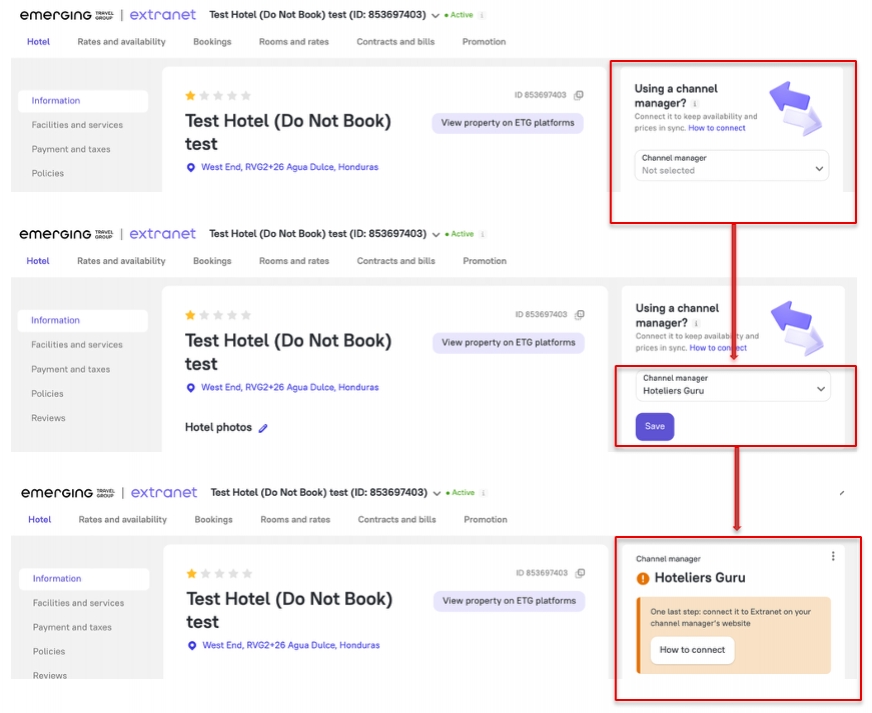
- In ETG’s Extranet, go to the Information section of your property. On the right-hand side, select Hoteliers.Guru from the list of channel managers.
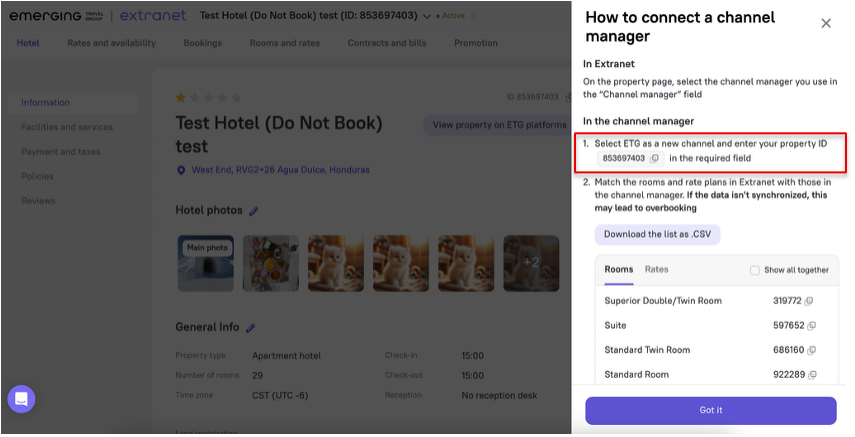
- Click How to connect button.
- Provide your Property ID to Hoteliers.Guru Support Team
Step 2: Start mapping Emergingtravel.com in channel manager.
- Log in to Hoteliers.Guru Channel Manager (https://apps.hoteliers.guru/channel-manager)
- Click on "Channels"
- tiket.com -> click on "Settings" button
- Click on "Retrieve room rate" button
- Start mapping room rate by steps on mapping guide link: https://cms.hoteliers.guru/product-manual/channel/mapping-guide
Step 3: Once the mapping is complete, check your inventory, confirm the connection, and enable Emergingtravel.com in channel manager.
- Select "Setting" tap
- Status -> select "Enabled"
- Click "Save" button
- Finished
Important Note:
- Enabled status: The Channel Manager will send all updates to the booking channel for the mapped room.
- Disabled status: The Channel Manager will not send any updates to the booking channel for the mapped room.
Step 4: Review Allotment and Rates on Emergingtravel.com
The final step is to refresh your Emerging Trave Group Extranet allotment and rates calendar, then verify that the allotment and rates pushed from the Channel Manager are correctly matched. If the information does not match, please contact the Hoteliers.Guru Support Team for further assistance.