

How to connect tiket.com
Step 1: Connect Hoteliers.Guru Channel Manager to tiket.com.
You can see a list of Channel Managers available on tiket.com through the Connectivity menu in the Extranet.
Here are some things you need to check before connecting tiket.com to the Hoteliers.Guru Channel Manager:
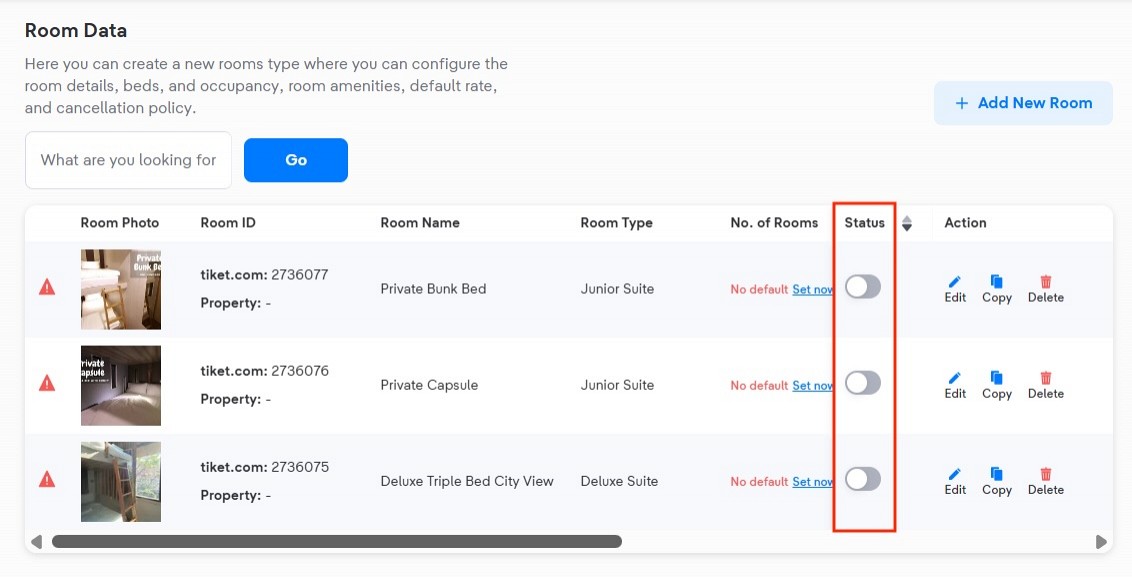
- All room types available on the tiket.com Extranet are complete and active
- All rate plans available on the tiket.com Extranet are complete, linked to a room type, and active
- The Pricing Model is set according to the hotel partner's preference and matches the Pricing Model the Channel Manager supports (Room Based or Occupancy Based).
- If you are using the Occupancy-based pricing model, deactivate the automatic price reduction feature on all rate plans through the Manage Rates & Availability menu
If your property is already using the Hoteliers.Guru Channel Manager, you can connect Hoteliers.Guru Channel Manager to tiket.com using the following steps:
- Click the Connectivity menu
- Select Hoteliers.Guru from the dropdown menu
- Click the Add button
- Click Continue
You will receive a notification that you have successfully connected the Hoteliers.Guru Channel Manager in the Connectivity menu. Then, you can do the data mapping process for rooms and rate plans on the Hoteliers.Guru Channel Manager to connect tiket.com.
Step 2: Start mapping tiket.com in channel manager.
- Log in to Hoteliers.Guru Channel Manager (https://apps.hoteliers.guru/channel-manager)
- Click on "Channels"
- tiket.com -> click on "Settings" button
- Click on "Retrieve room rate" button
- Start mapping room rate by steps on mapping guide link: https://cms.hoteliers.guru/product-manual/channel/mapping-guide
Step 3: Once the mapping is complete, check your inventory, confirm the connection, and enable tiket.com in channel manager.
- Select "Setting" tap
- Status -> select "Enabled"
- Click "Save" button
- Finished
Important Note:
- Enabled status: The Channel Manager will send all updates to the booking channel for the mapped room.
- Disabled status: The Channel Manager will not send any updates to the booking channel for the mapped room.
Step 4: Review Allotment and Rates on tiket.com
The final step is to refresh your tiket.com Extranet allotment and rates calendar, then verify that the allotment and rates pushed from the Channel Manager are correctly matched. If the information does not match, please contact the Hoteliers.Guru Support Team for further assistance.