
When a hotel receives a request from a customer to amend a booking, such as extending or shortening the stay, the hotel can process the amendment through the Booking Engine by following the steps below.
Example: Extending the Stay
For example, the customer requests to extend the stay from 1 night to 2 nights.
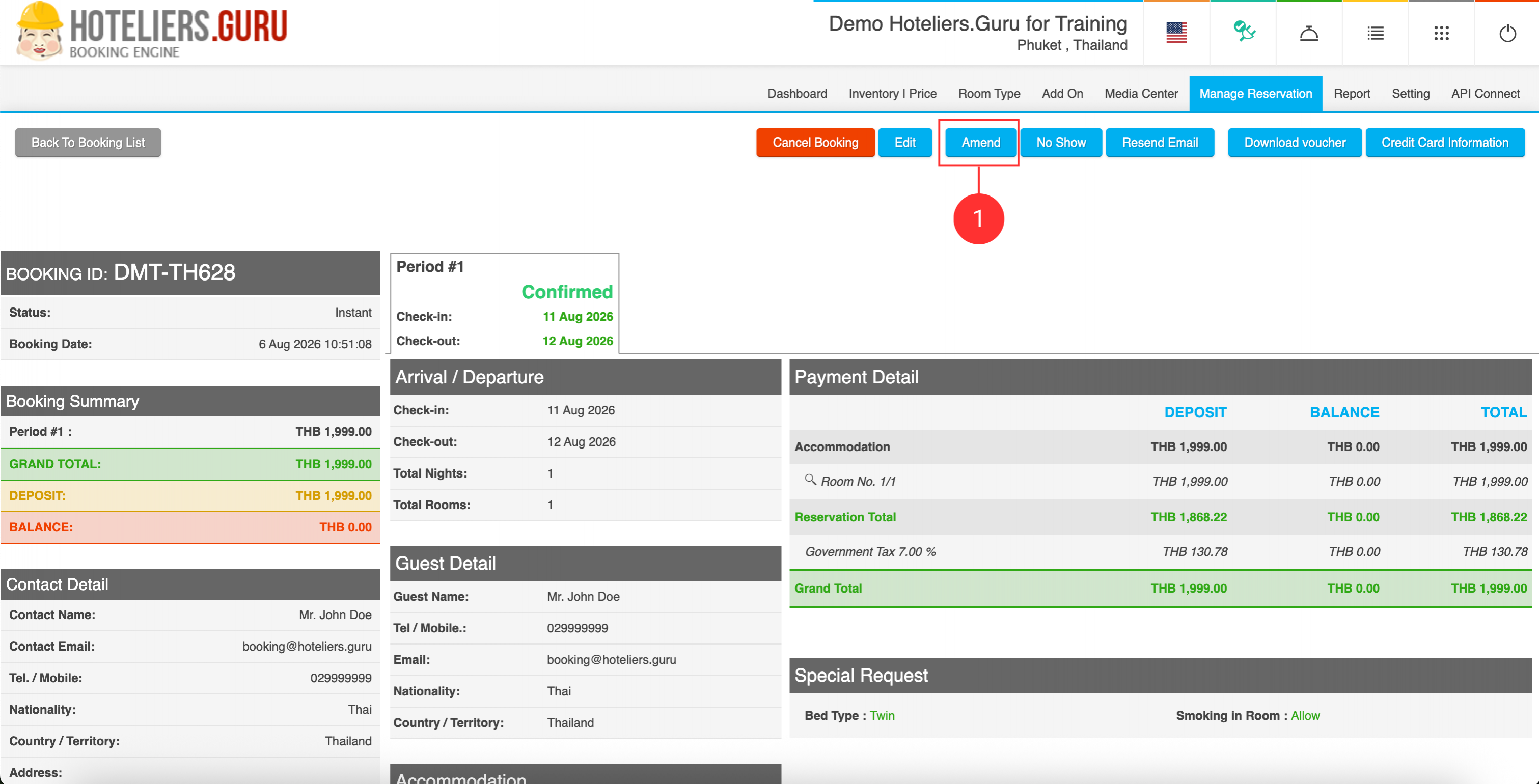
- In the Reservation Details, click Amend.
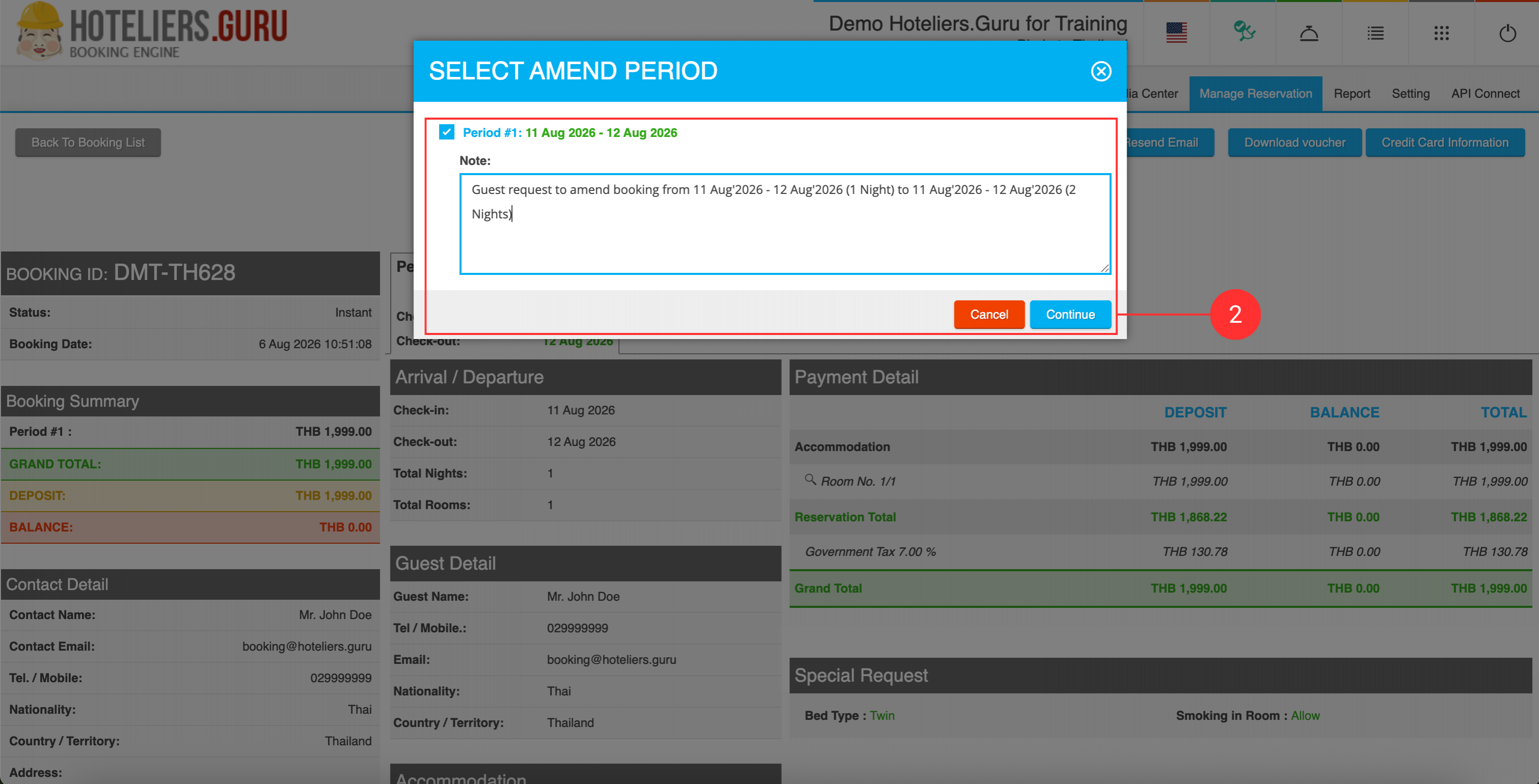
- Select the checkbox and enter the reason for the amendment.
Example: Guest requested to amend the booking from 11 Aug 2026 - 12 Aug 2026 (1 Night) to 11 Aug 2026 - 13 Aug 2026 (2 Nights).
Then click Continue.
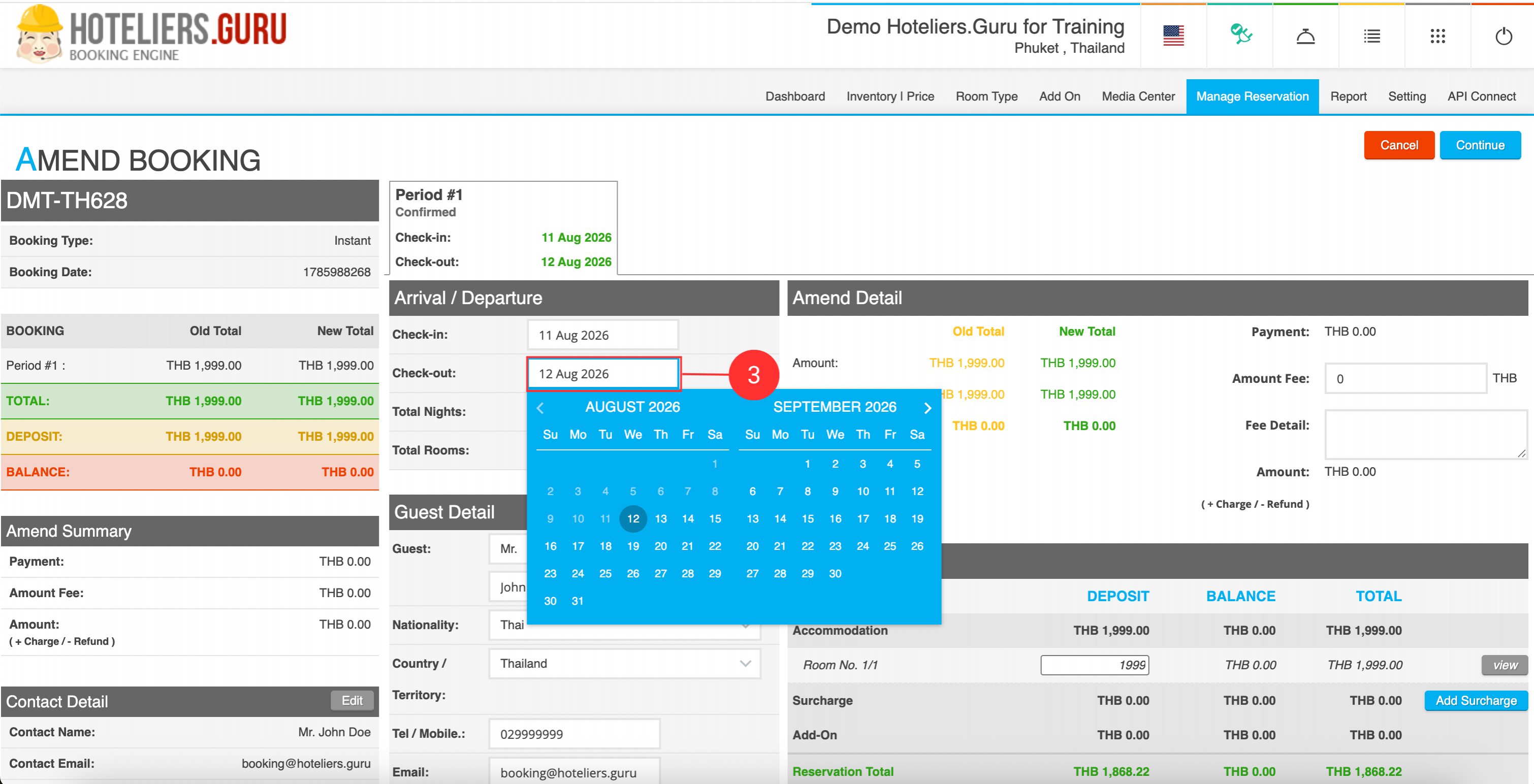
- Under Check-out Date, select the new check-out date.
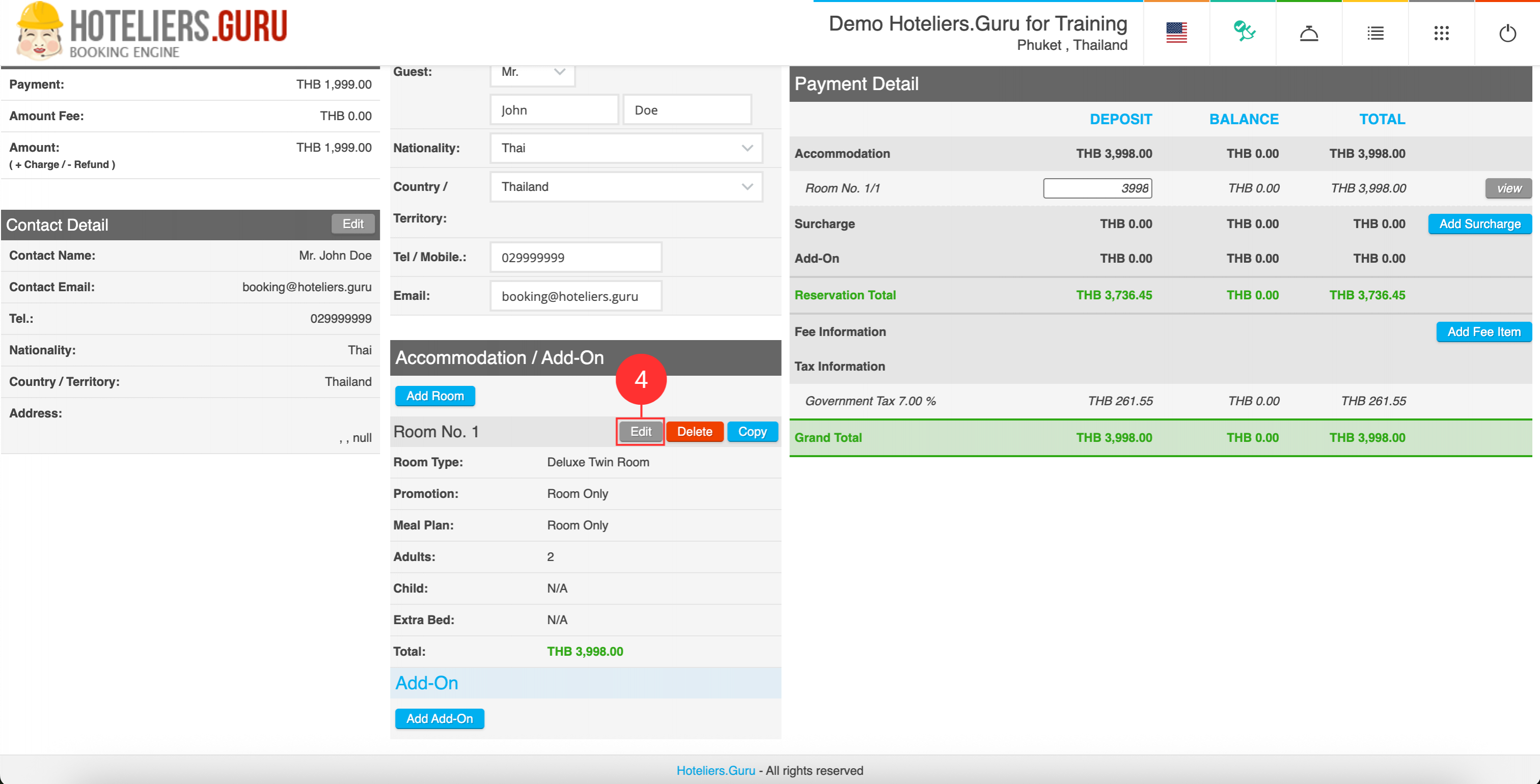
- Under Accommodation / Add-On, click Edit.
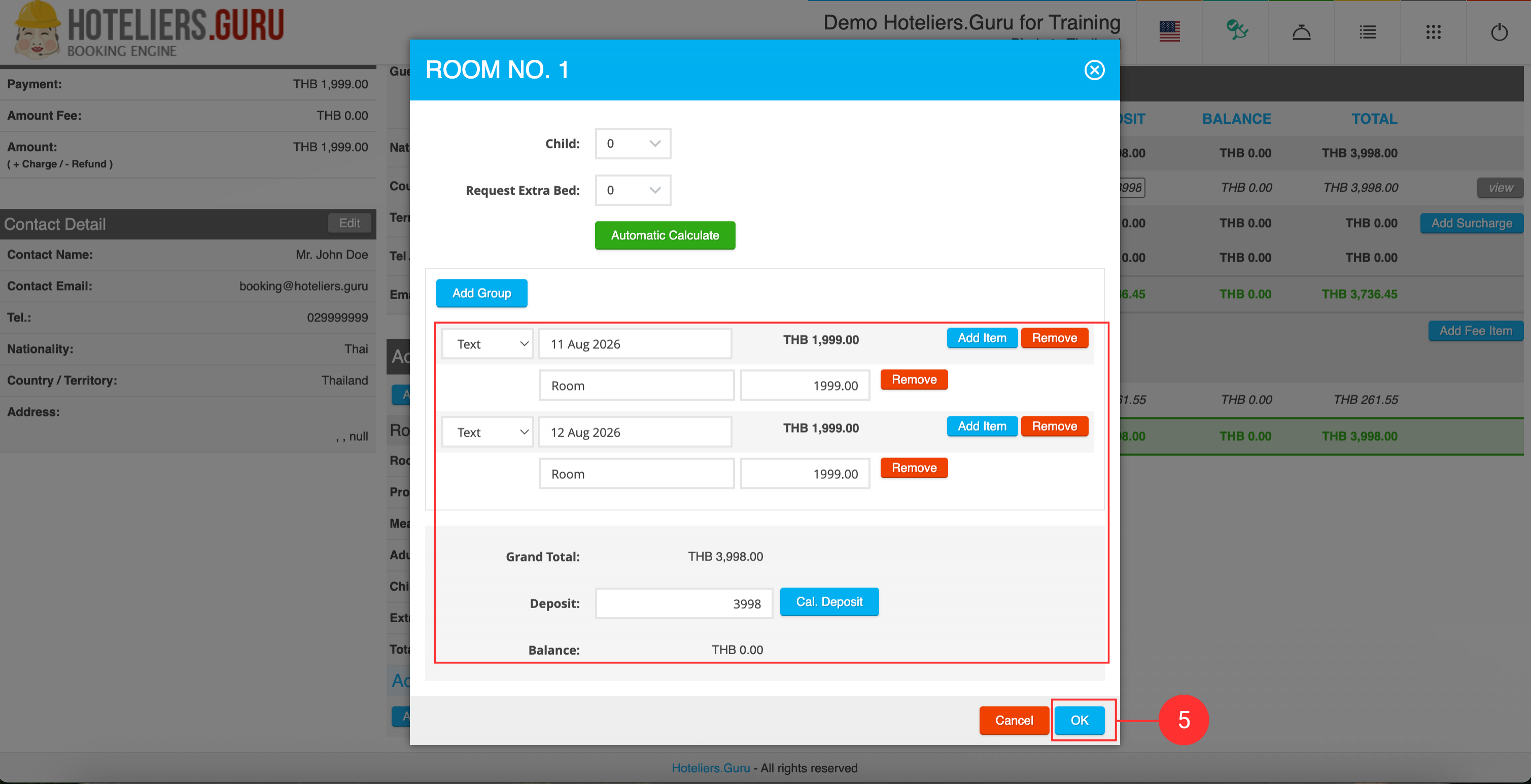
- Review and verify the booking details, then click OK.
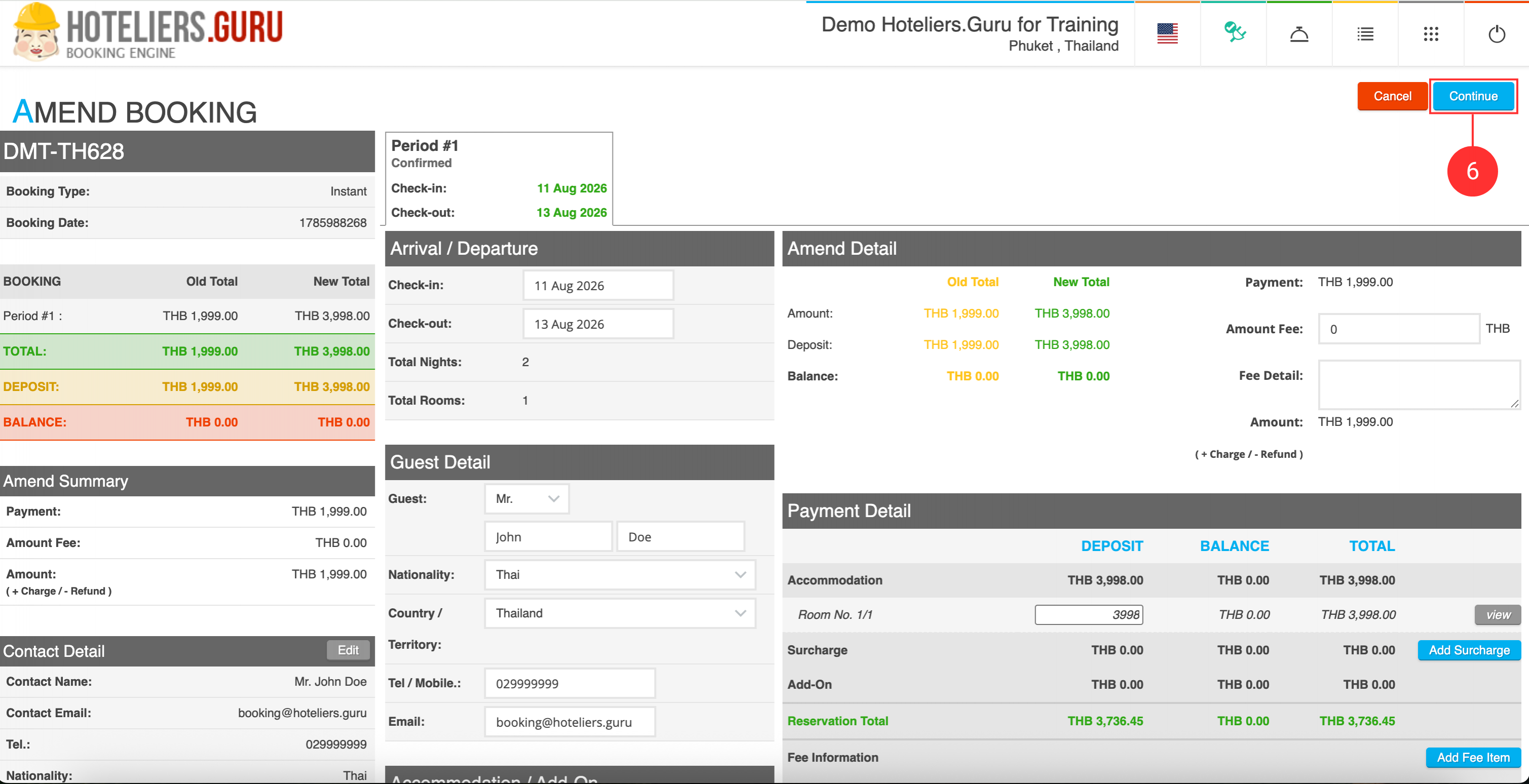
- Click Continue.
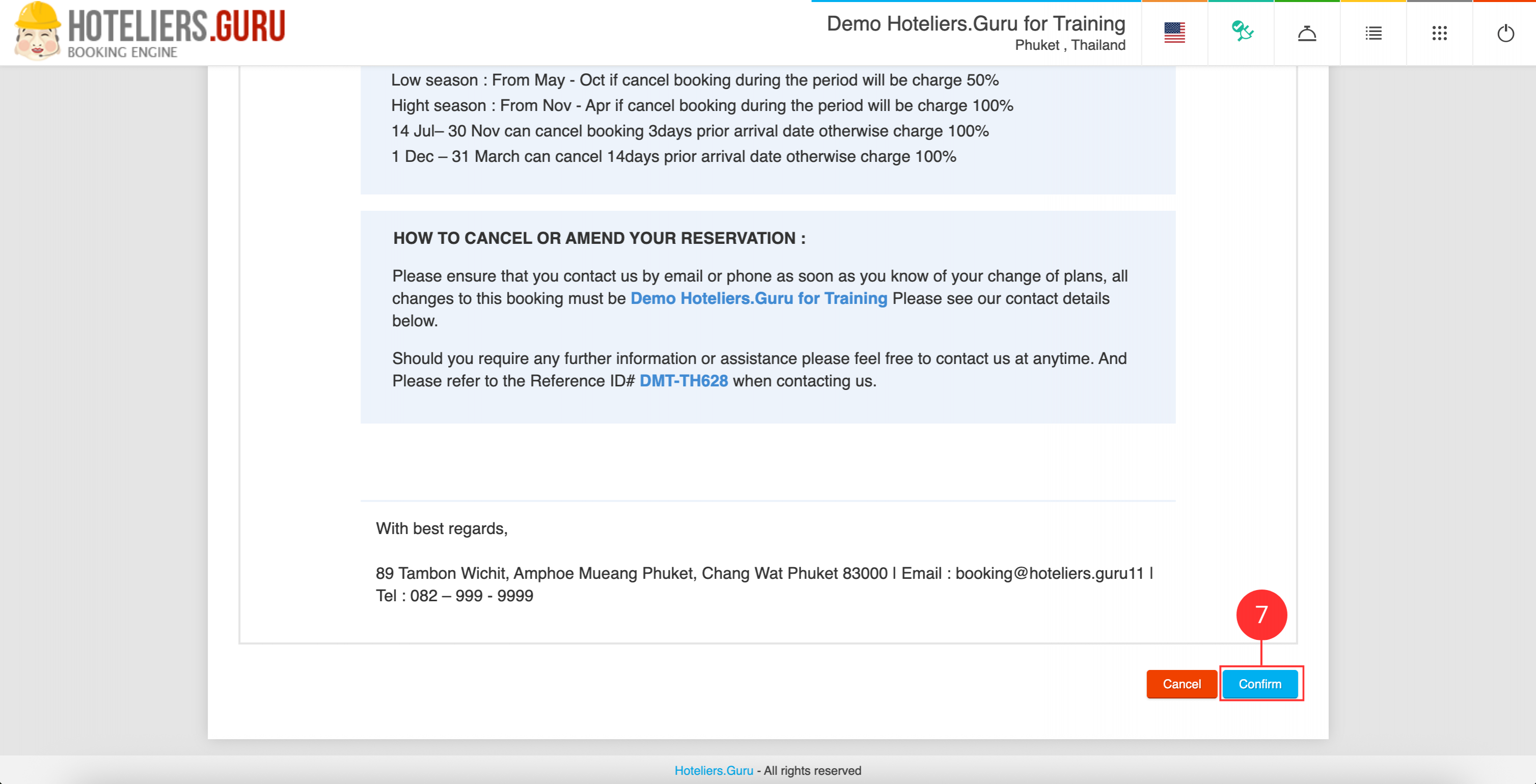
- In Email Preview, review the email and click Confirm to send it to the customer.
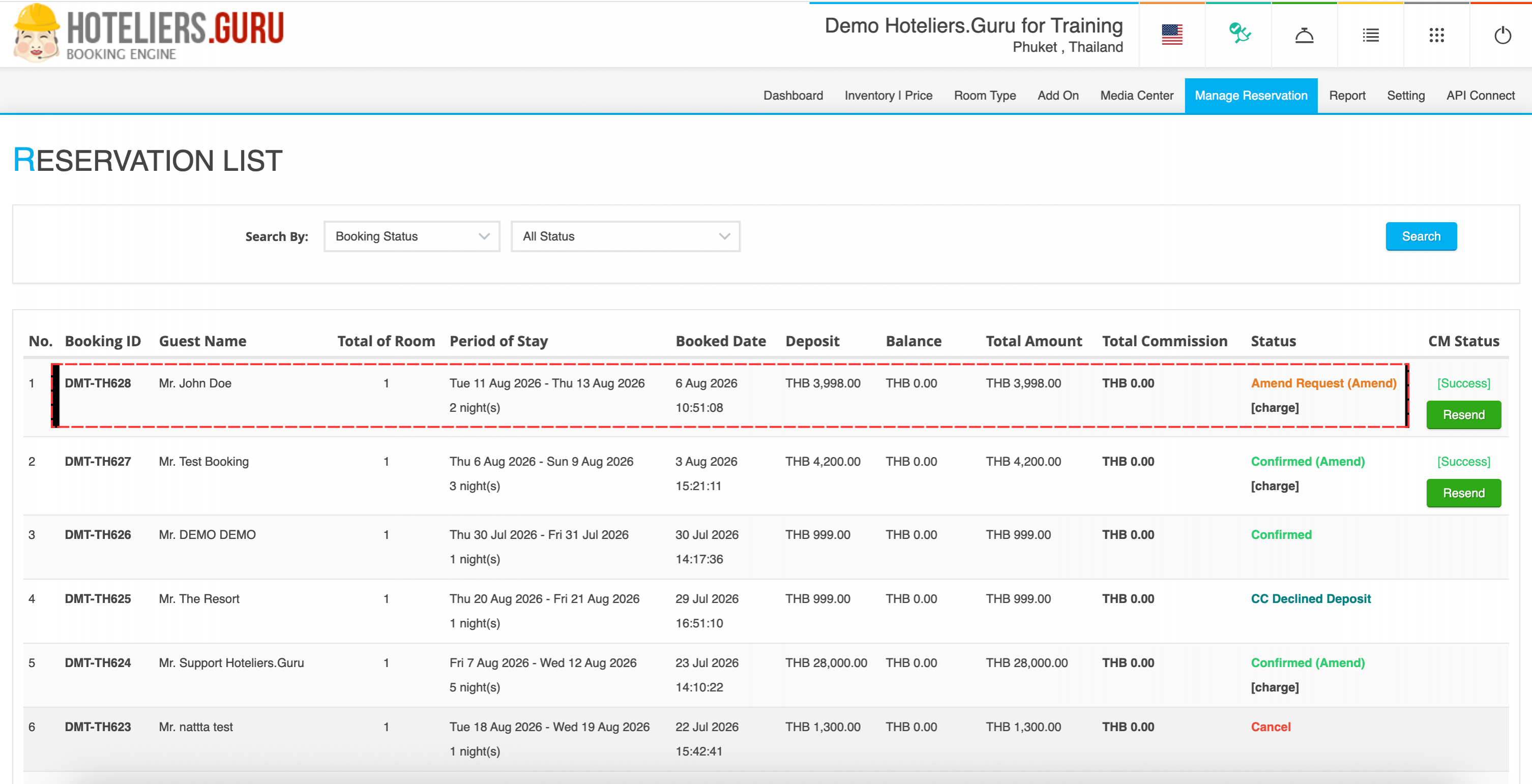
The booking status will change to Amend Request (Amend), indicating that the system is waiting for the customer to accept the amendment and pay any remaining additional charges.
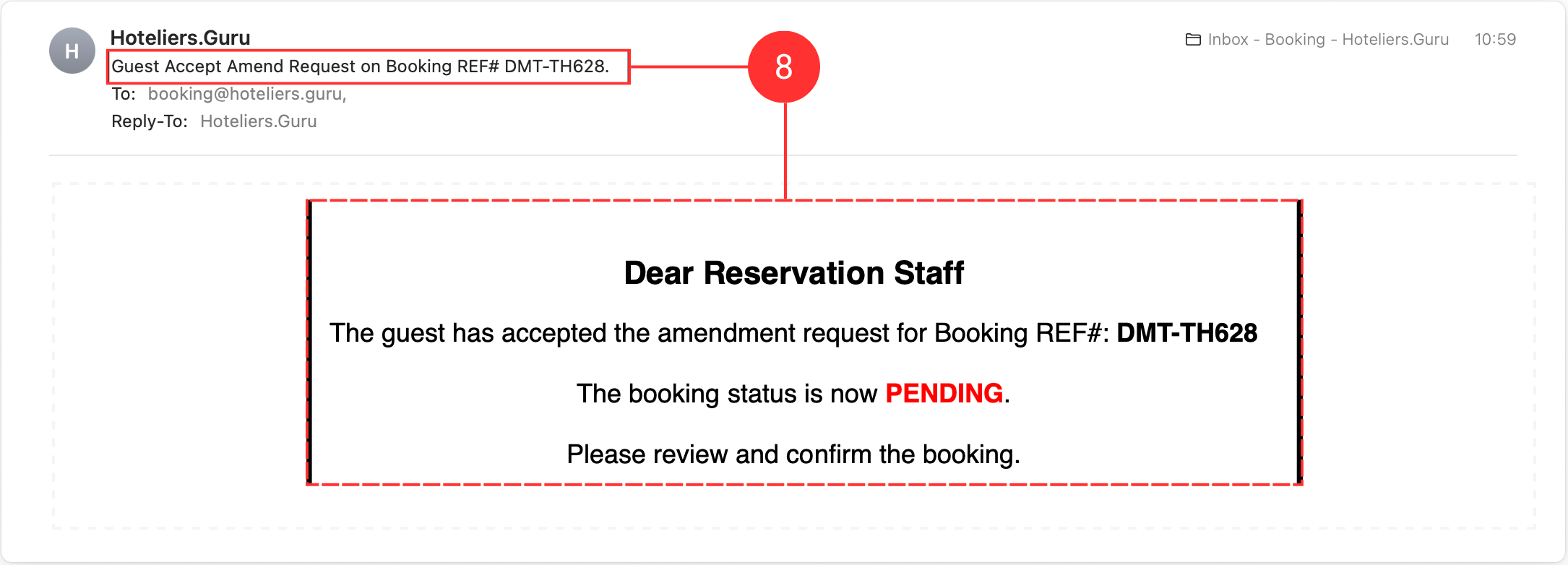
- Once the customer accepts the amendment, the hotel will receive an email notification titled “Guest Accept Amend Request.”
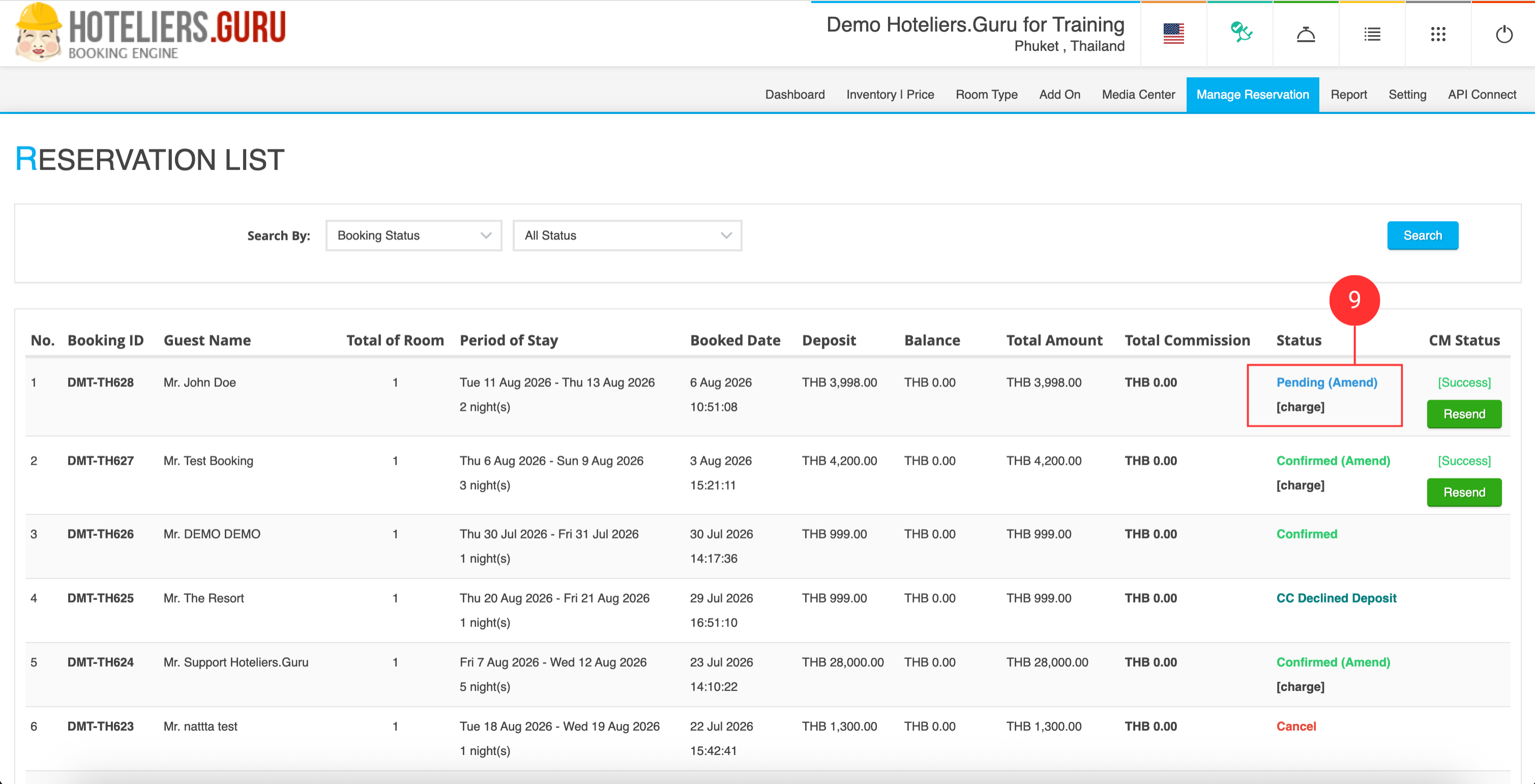
- The booking status will change to Pending (Amend) [charge].
Note: If the hotel uses a Bank Gateway or Payment Gateway in the Booking Engine, once the customer accepts the amend request and submits the credit card details, the payment gateway will process the payment.If the credit card is successfully charged, the Booking Engine will automatically change the booking status to Confirmed (Amend) (Step 14) and send a confirmation email to the customer automatically.
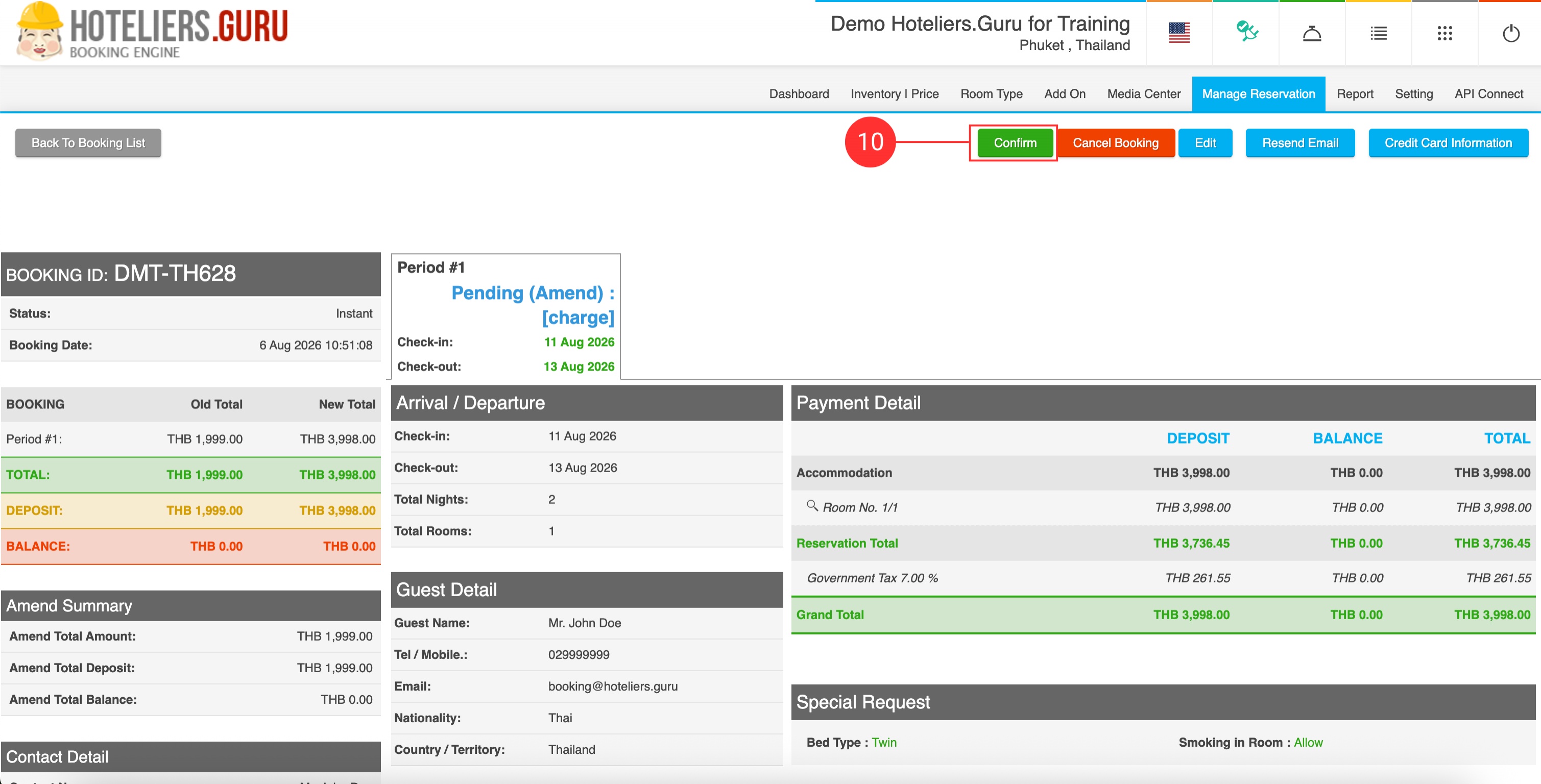
- Click Confirm.
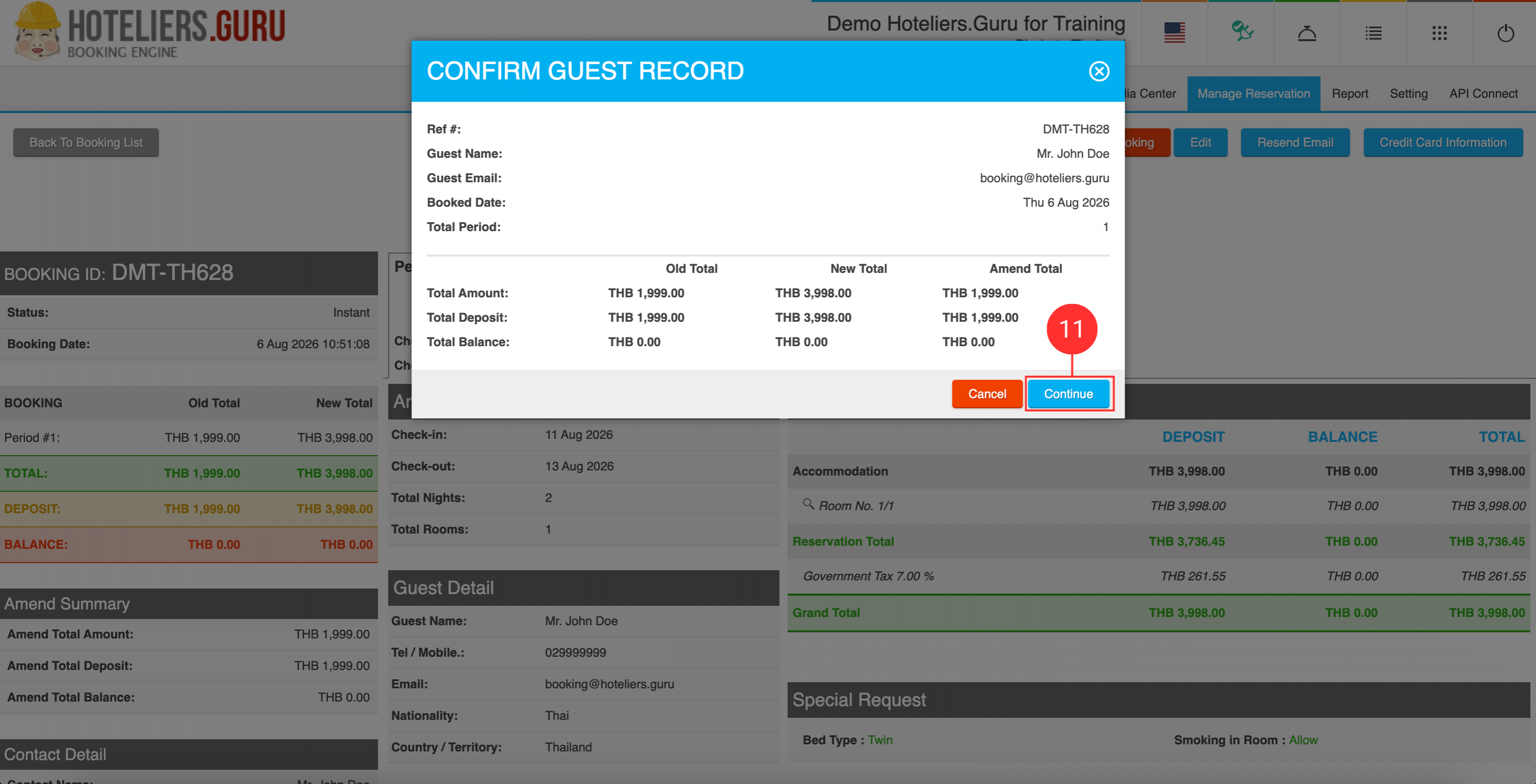
- Click Continue.
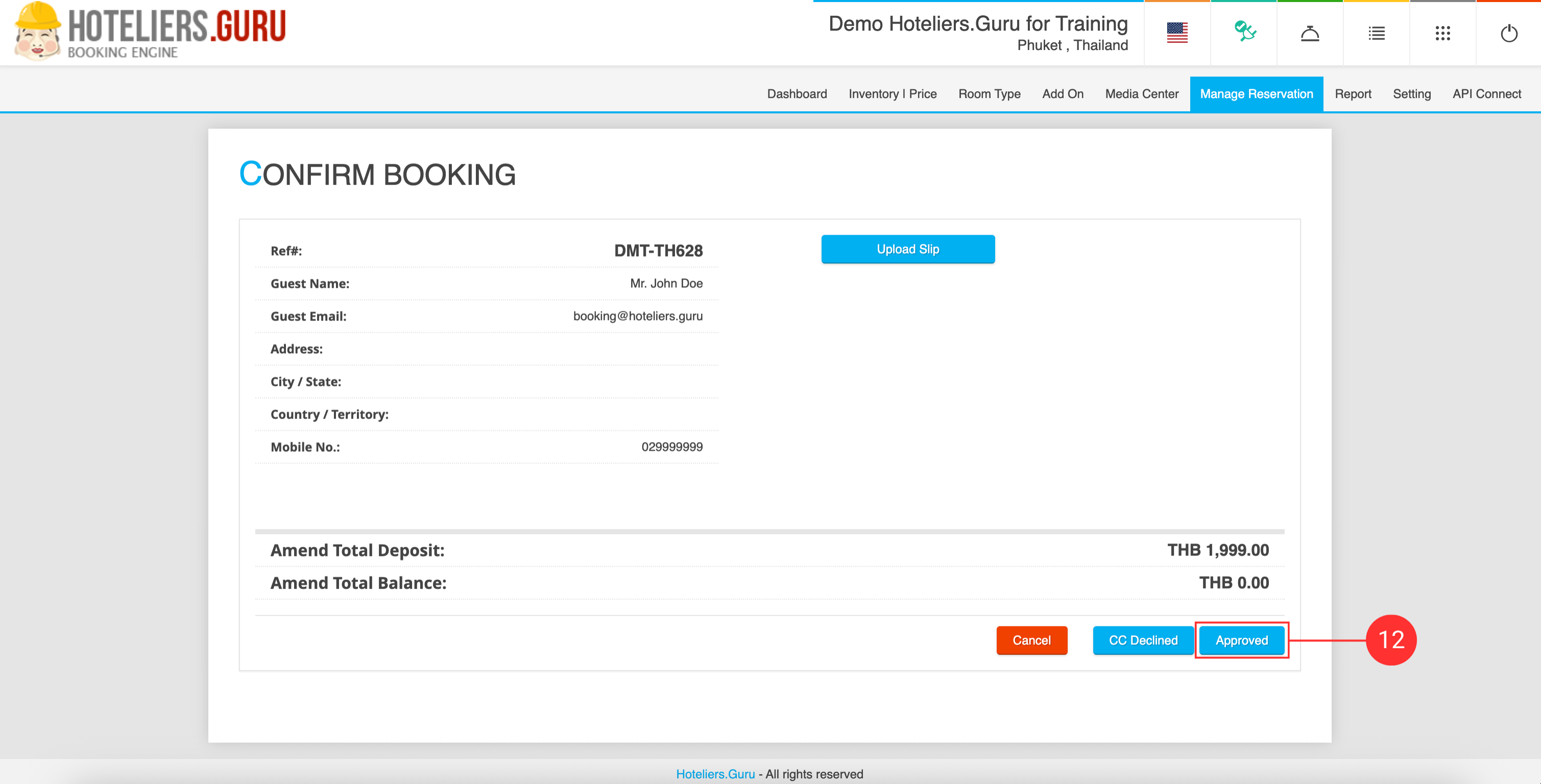
- Click Approve.
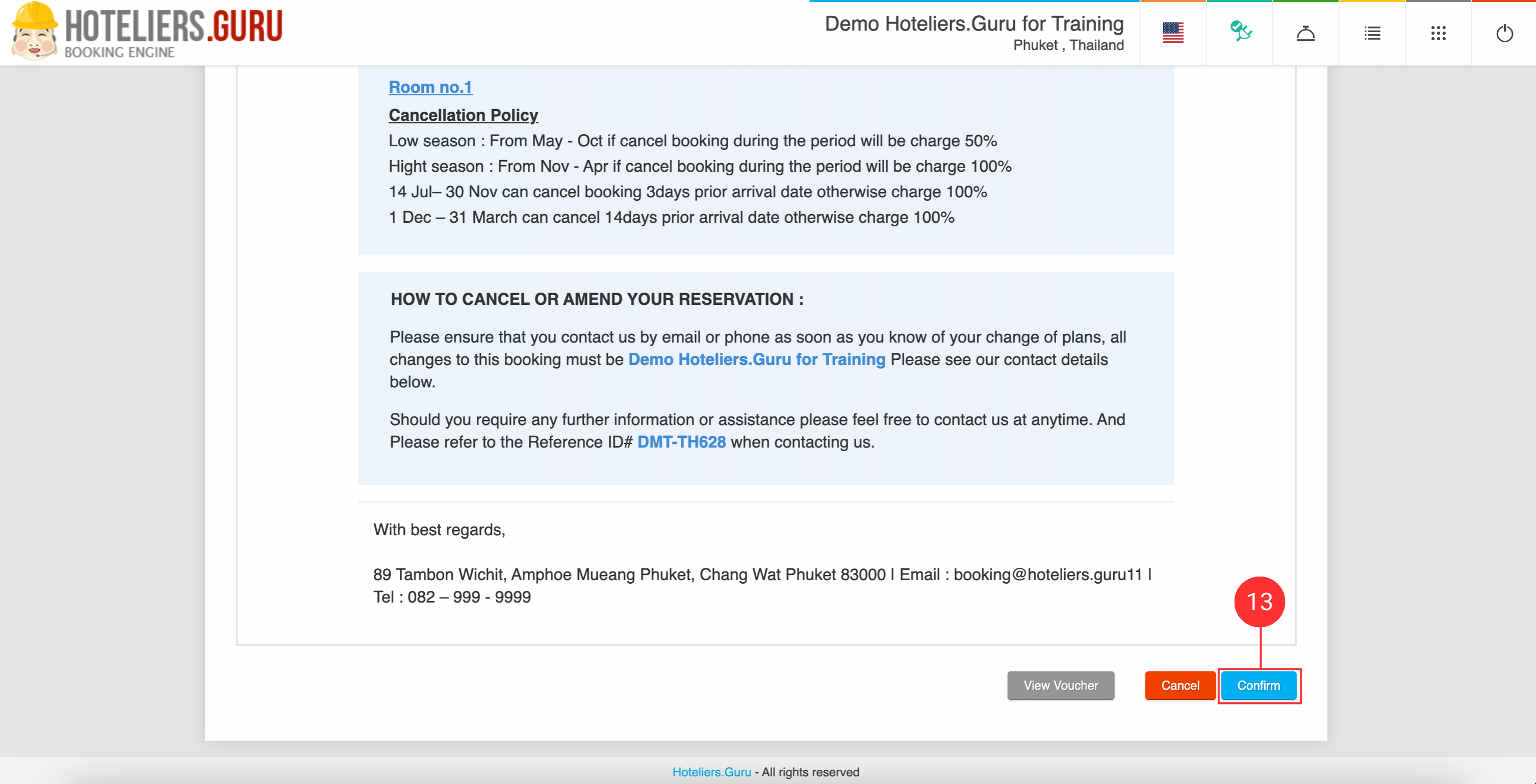
- In Email Preview, review the email and click Confirm.
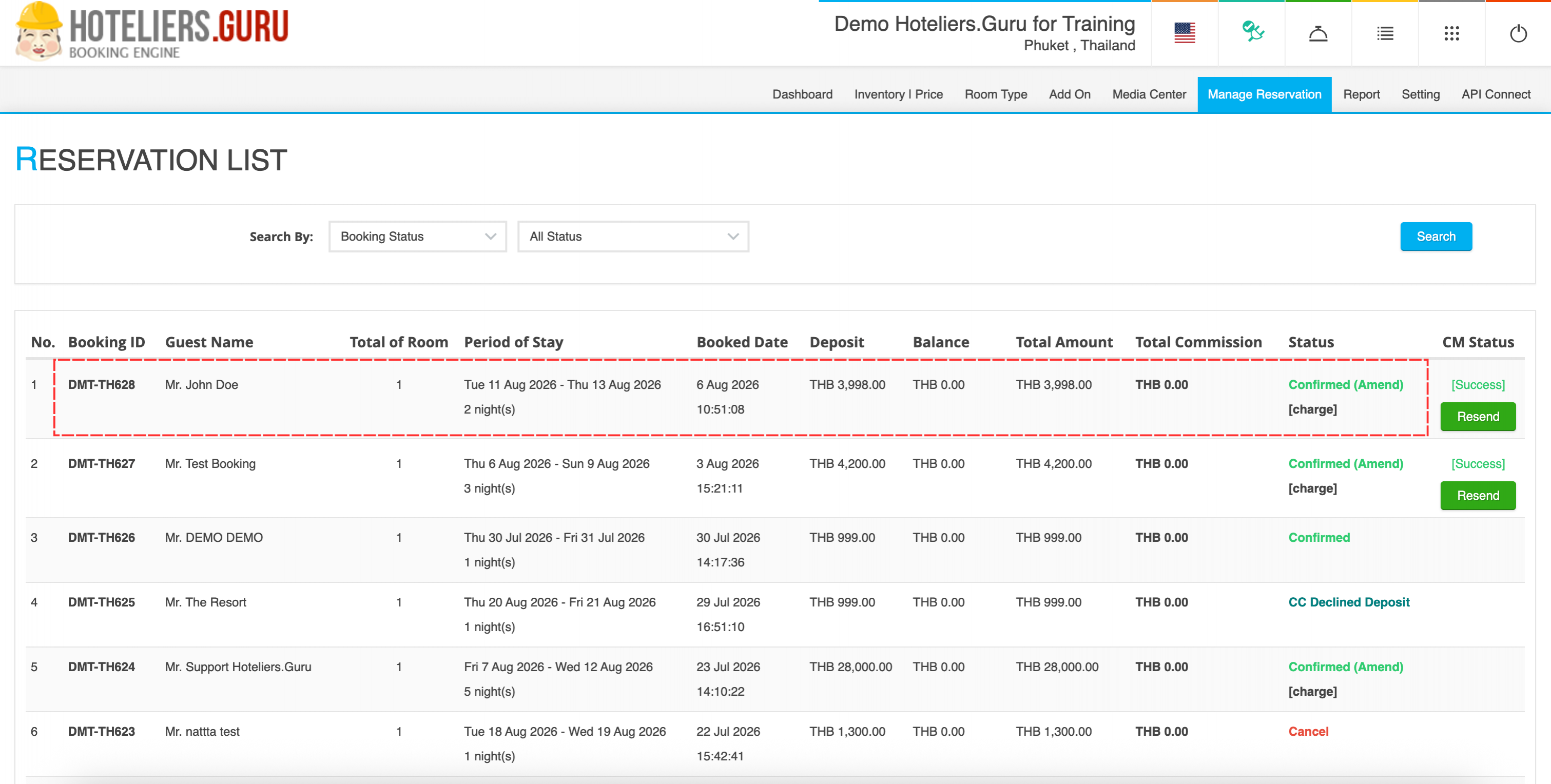
- The booking status will change to Confirm (Amend) [charge], indicating that the amendment process is complete.