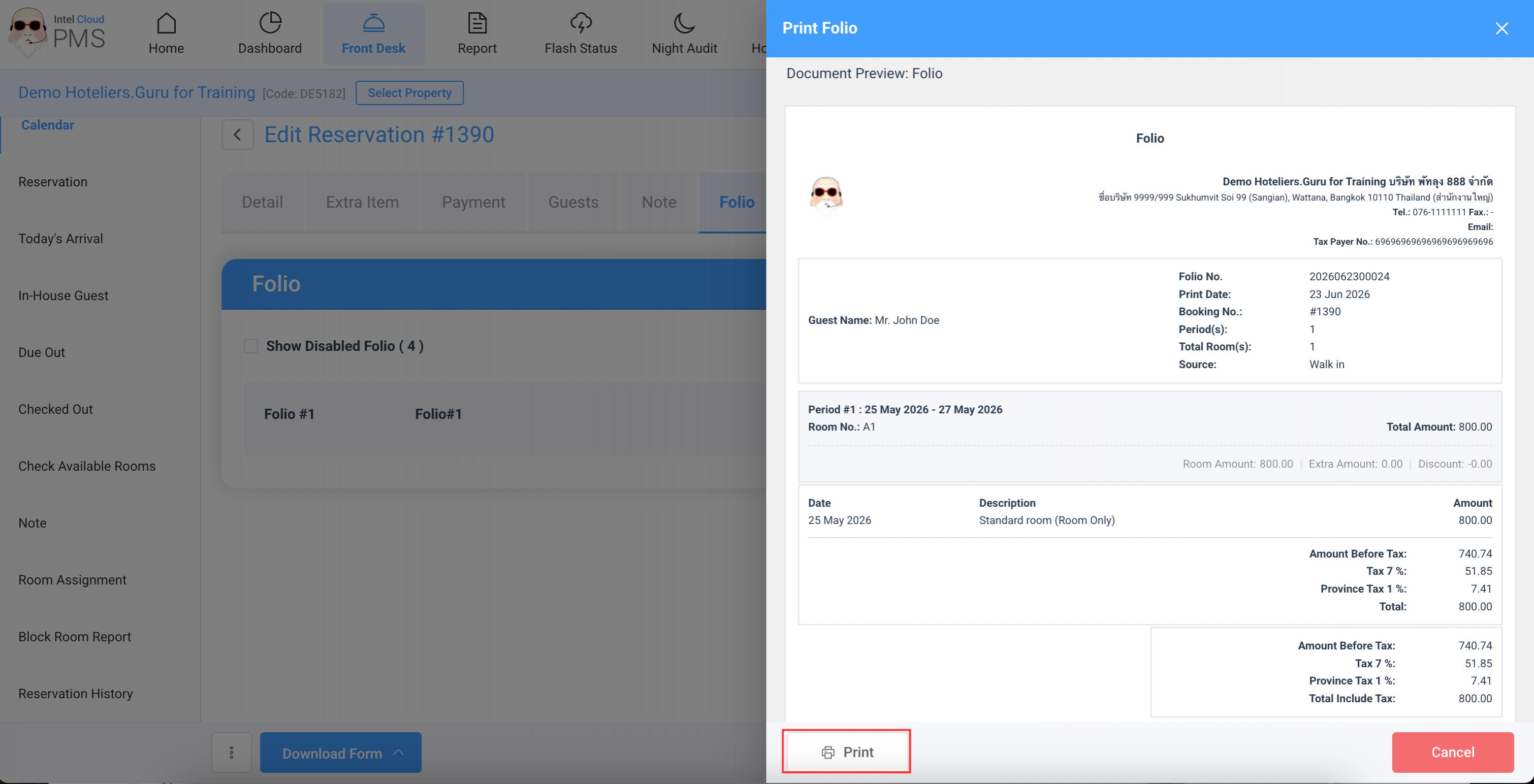

A Folio is a payment transaction record that consolidates all posted charges in one place, such as room charges, extra services, and other expenses including F&B, spa, minibar, service fees, taxes, and payments received, from check-in through post check-out.
Important Note:
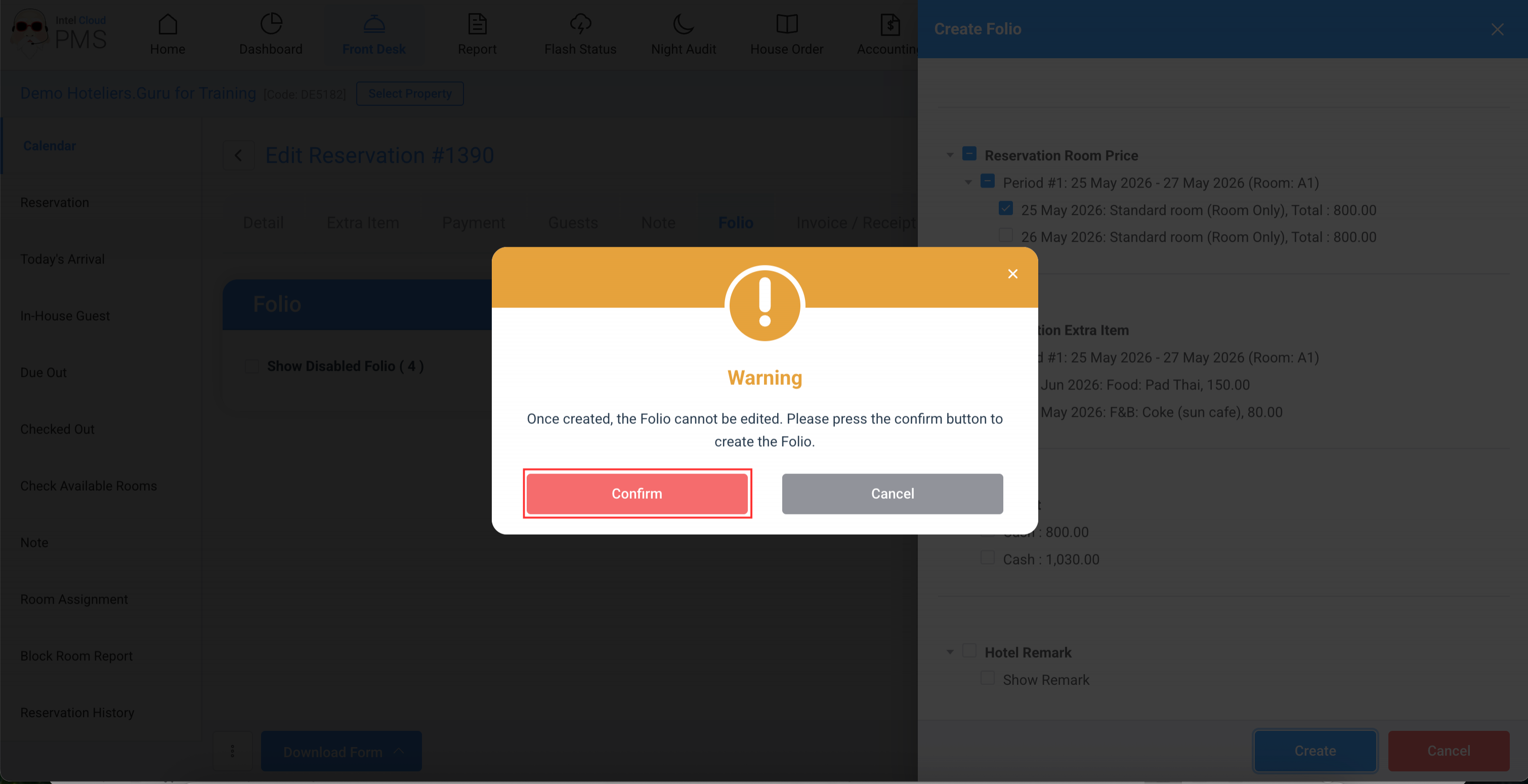
- Once a folio has been issued, its information cannot be edited. If any changes are required, the existing folio must be cancelled (Disabled), and a new folio must be issued.
- The system currently does not support transferring transaction items from one folio to another folio.
In the PMS, there are two ways to create a Folio:
- Type 1: Create Folio All Period: This option is suitable for creating a folio containing all transaction items (All Items).
- Type 2: Create Folio: This option is suitable for creating a folio with specific items only (Split Items), such as separating room charges, extra services, or splitting charges by number of nights.
Steps to Create a Folio
Type 1: Create Folio All Period (All Items)
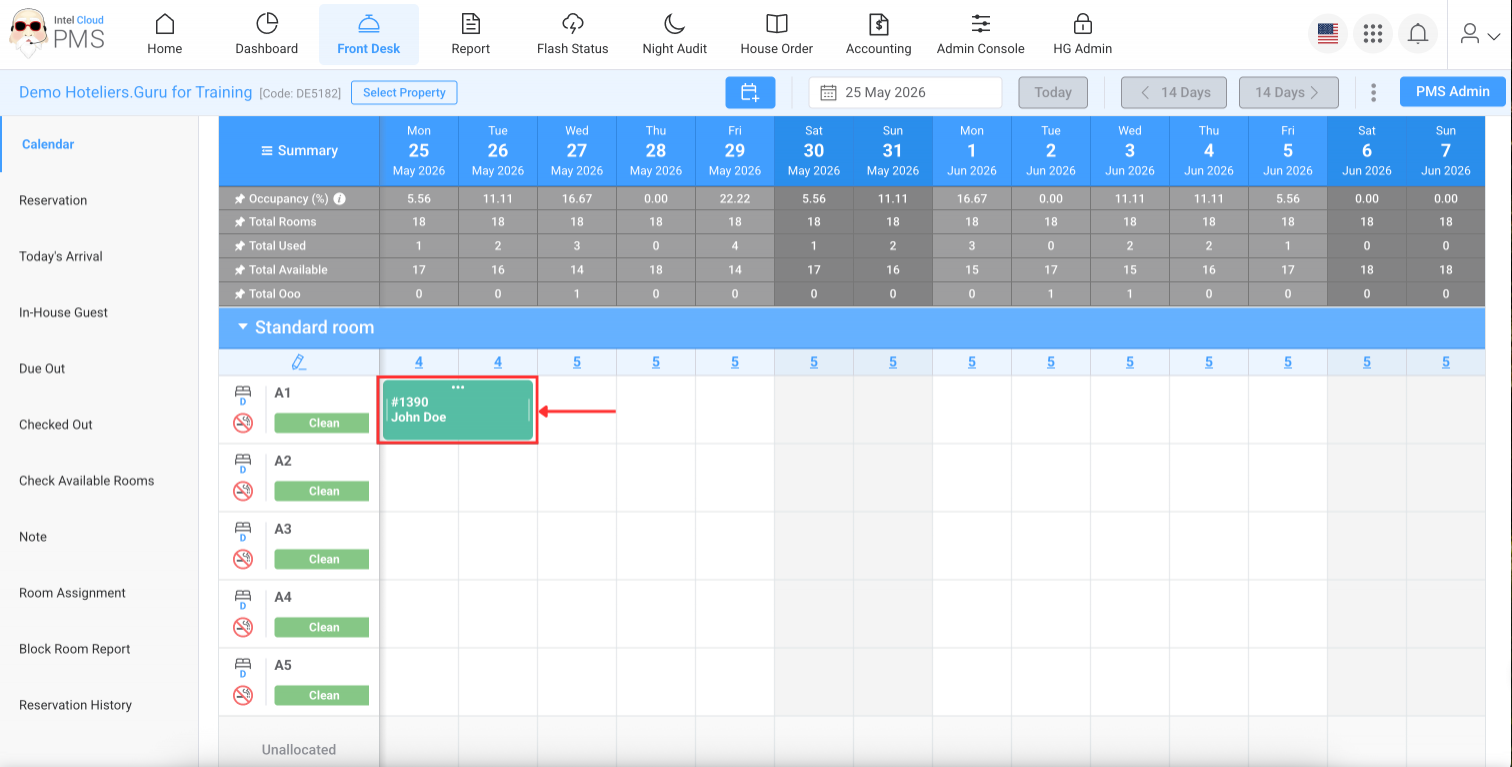
- Select the Booking Number (reservation number).
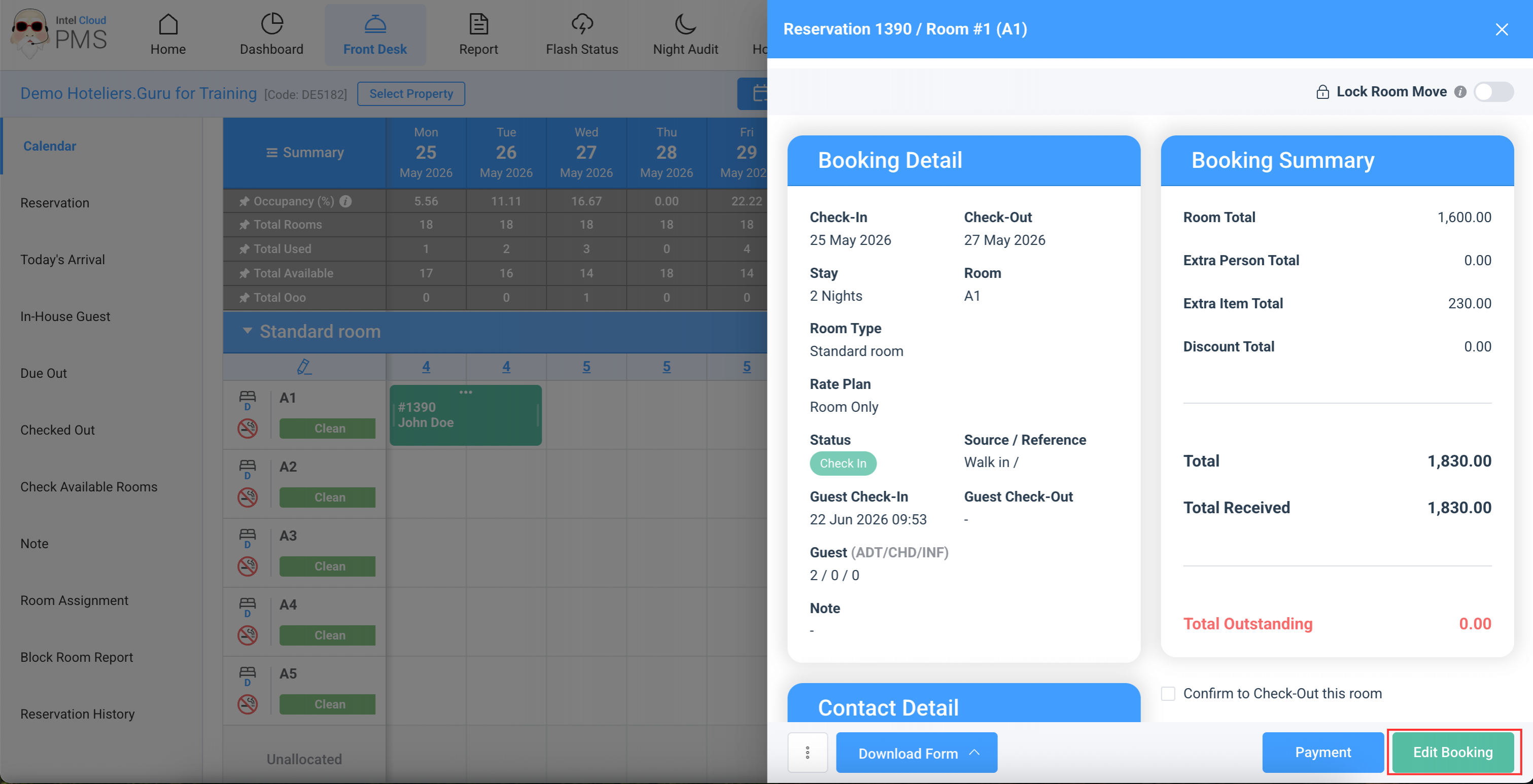
- Click Edit Booking.
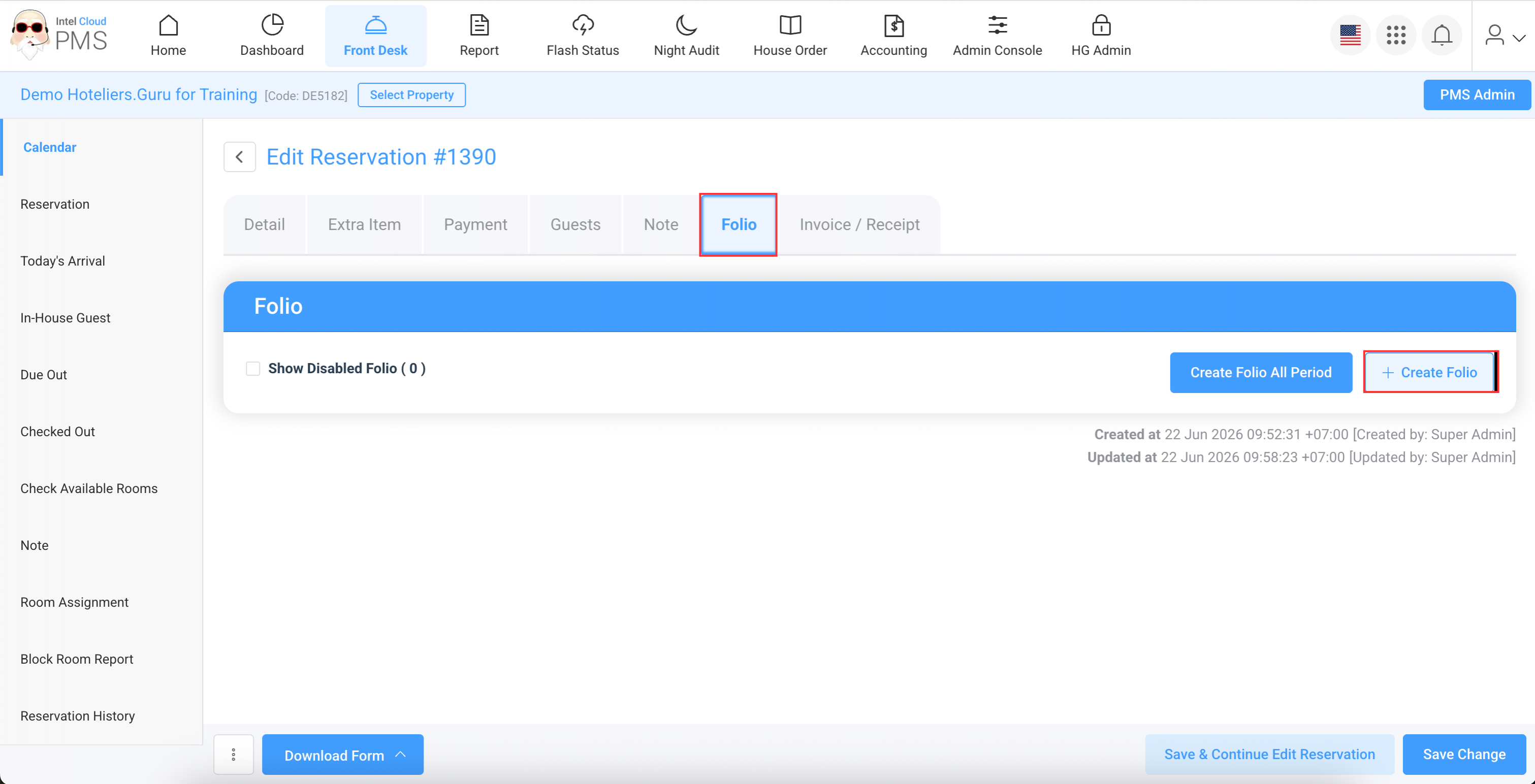
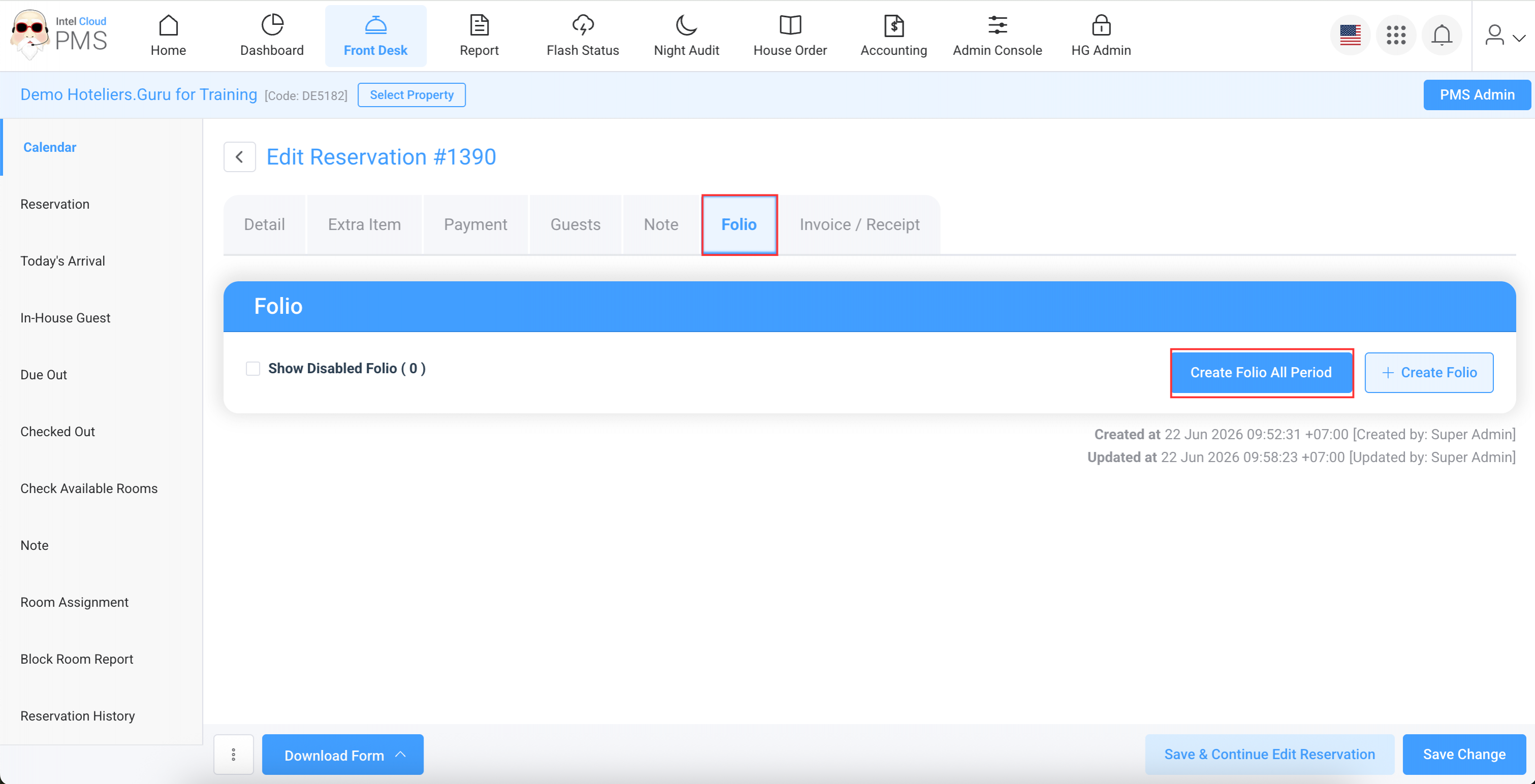
- Select the Folio tab.
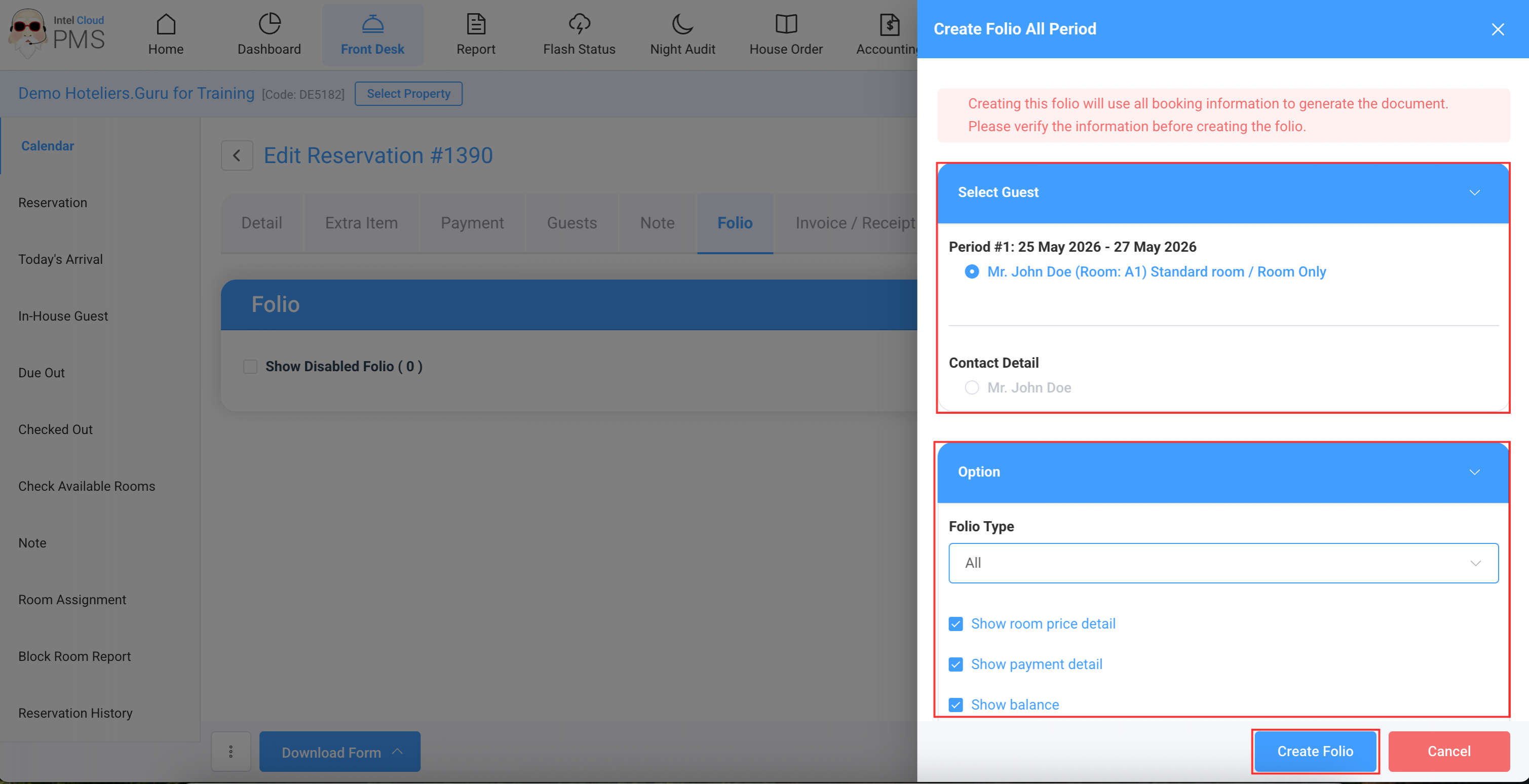
- Click Create Folio All Period.
- Select the information/items you want to display in the folio.
- Click Create Folio.
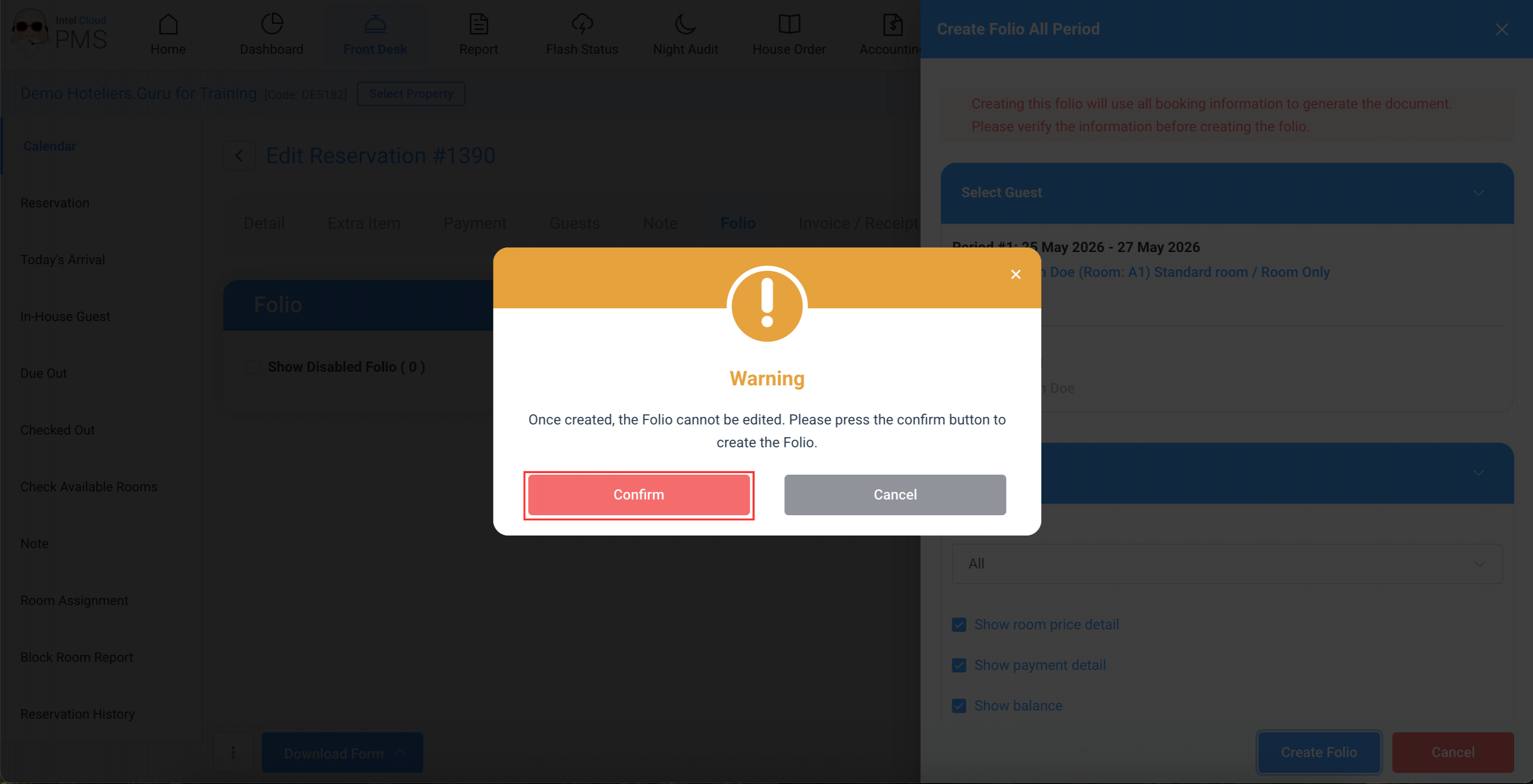
- Clikc Confirm.
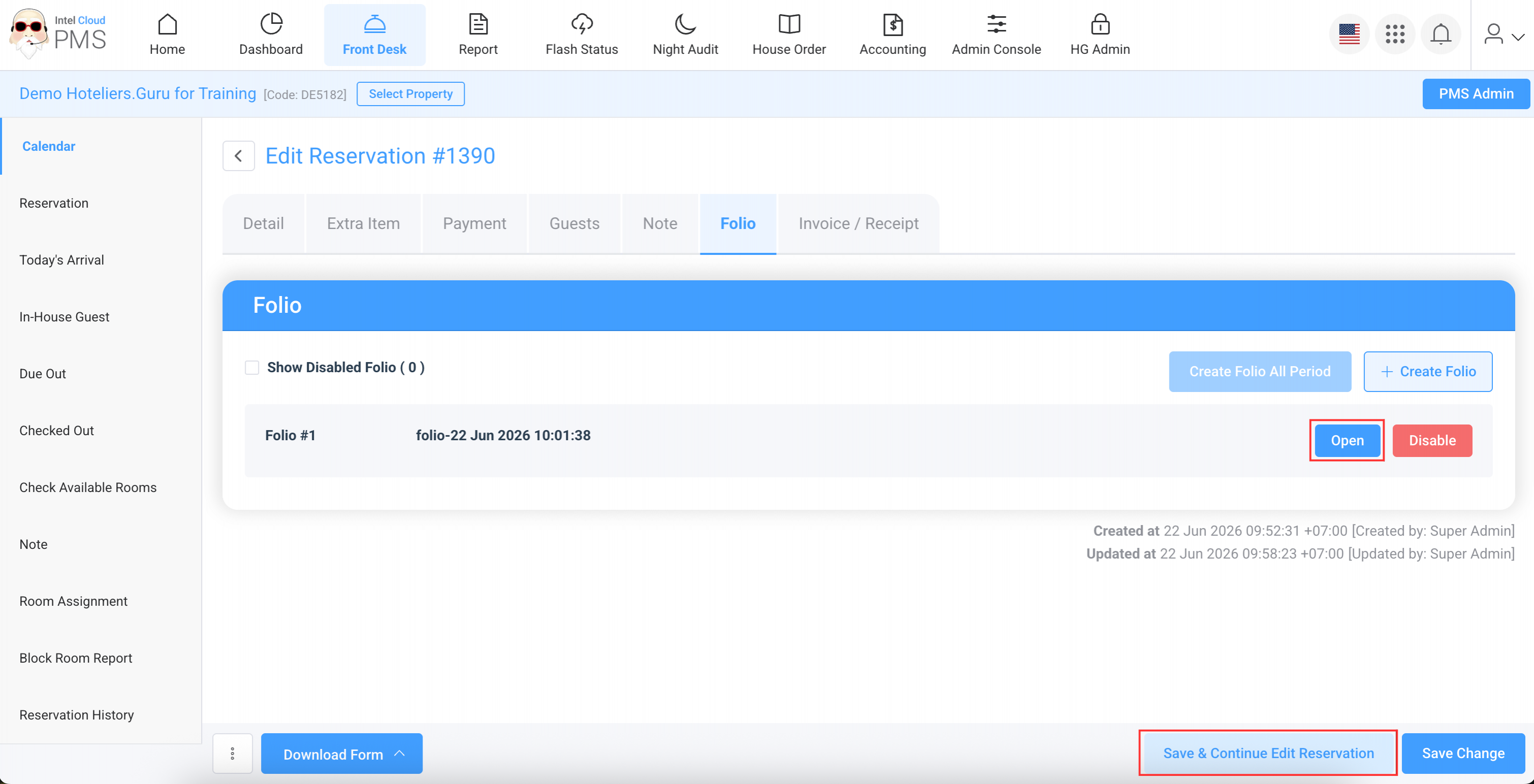
- Click Save & Continue Edit Reservation to save the folio.
- Click Open to view the folio details.
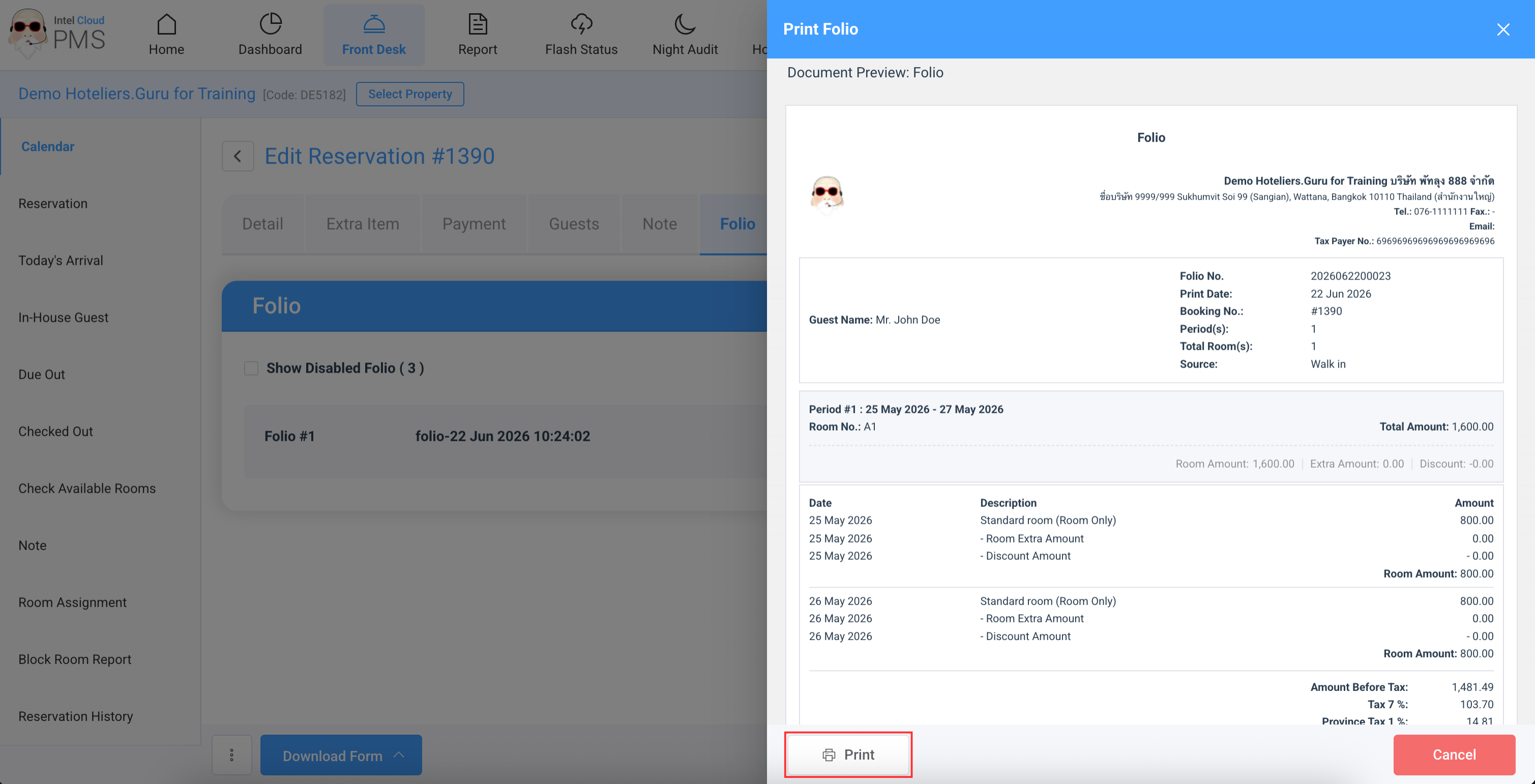
- Click Print to print the folio.
Type 2: Create Folio (Split Items)
This option is suitable for creating a folio with selected items only, such as separating room charges, extra services, or splitting charges by number of nights.
- Select the Booking Number (reservation number).
- Click Edit Booking.
- Select the Folio tab.
- Click Create Folio.
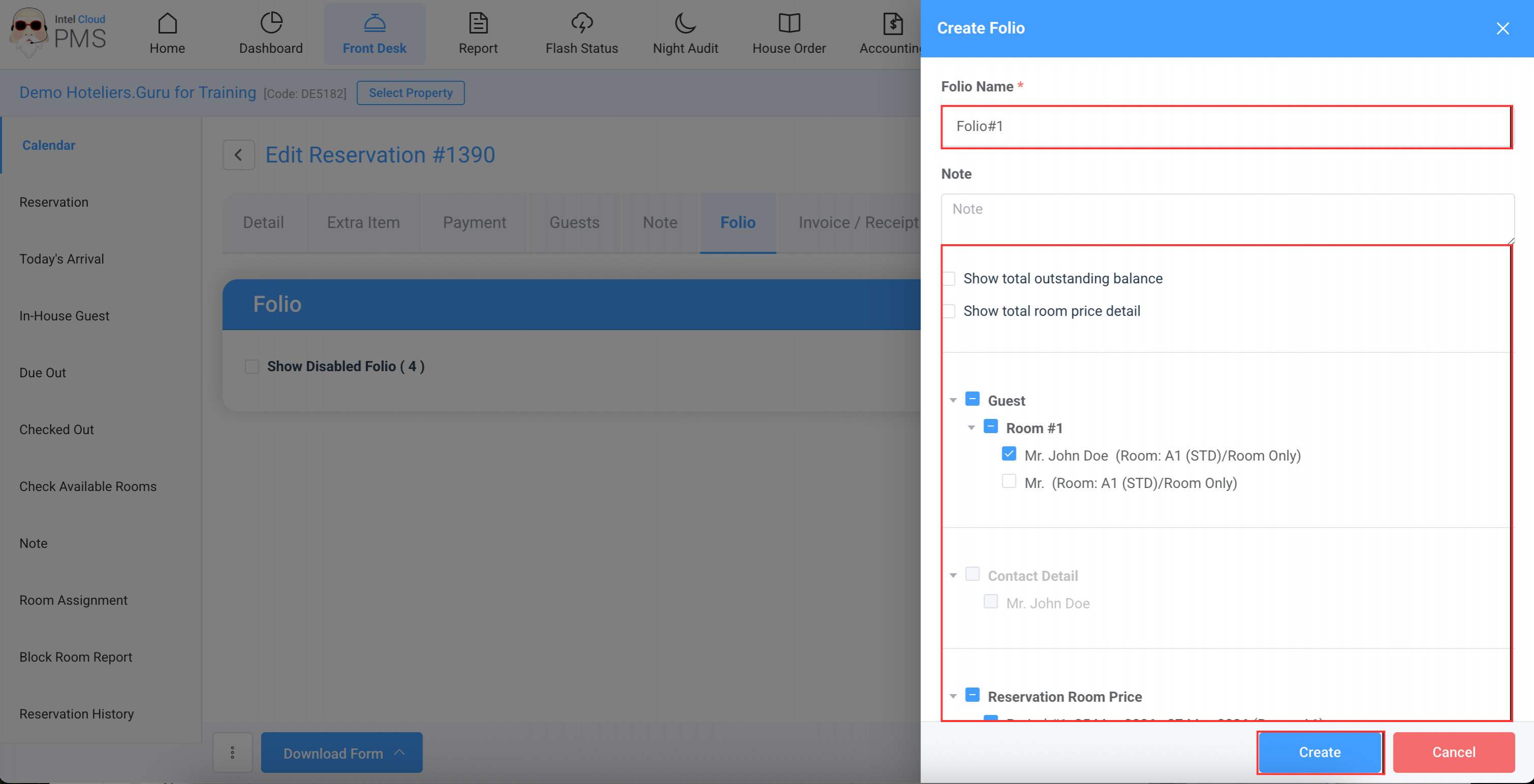
- In Folio Name, enter the desired folio name (e.g., Folio #1).
- In Note, enter any notes if needed.
- Select the information/items you want to display in the folio.
- Click Create.
- Click Confirm
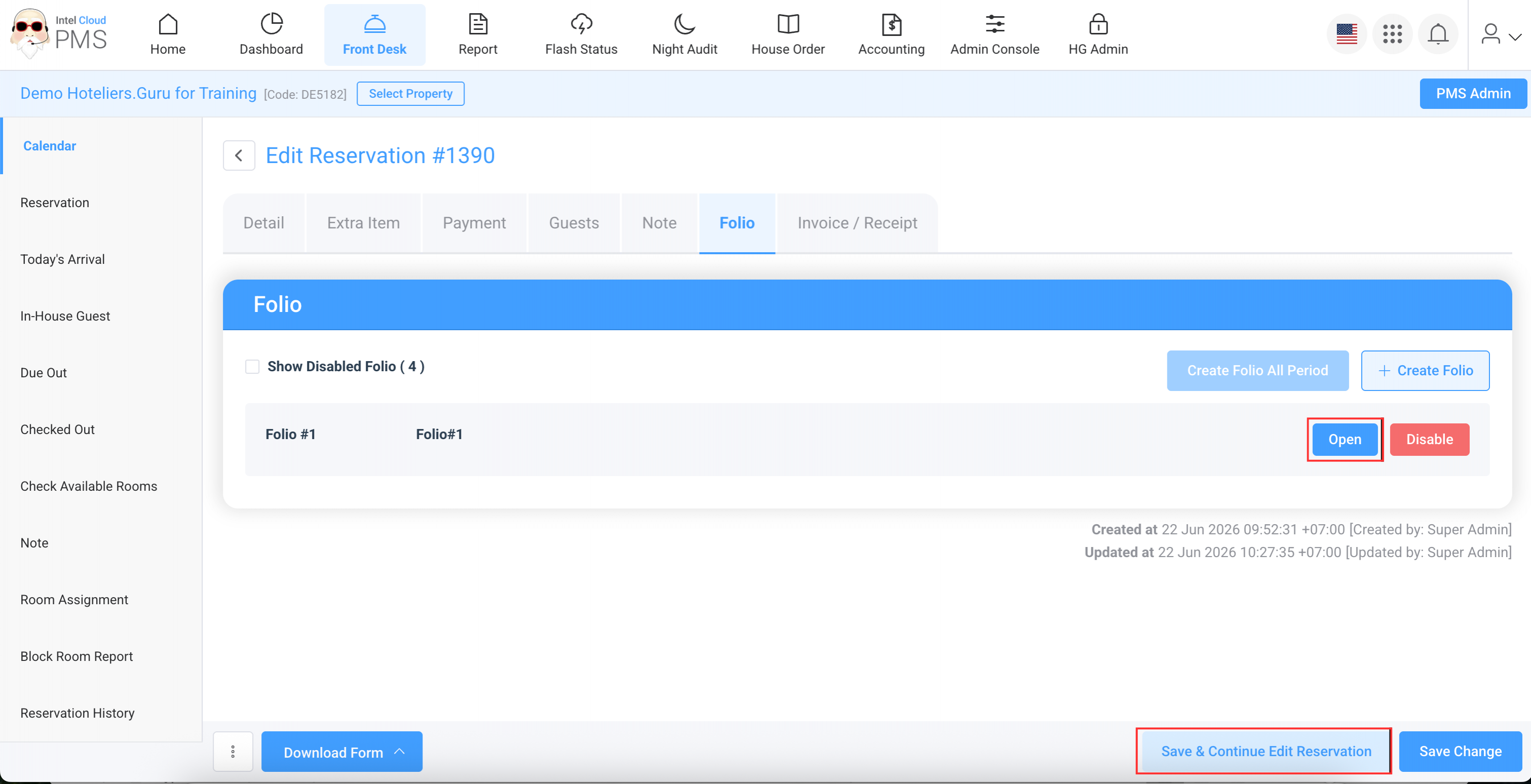
- Click Save & Continue Edit Reservation to save the folio.
- Click Open to view the folio details.
- Click Print to print the folio.